Table of Contents
User Account Management Service - my.uniwa.gr
Last update: 17/2/2026
Description
The User Account Management Service is a web-based service that gives users the ability to:
- Change their password.
- Add or change their account recovery email.
- Change their display name in Office 365 (Outlook, Teams, OneDrive, etc.).
- Reset their account password.
Change password instructions
To change the current password of your institutional account, please follow these steps:
1. Open using a browser the page https://my.uniwa.gr
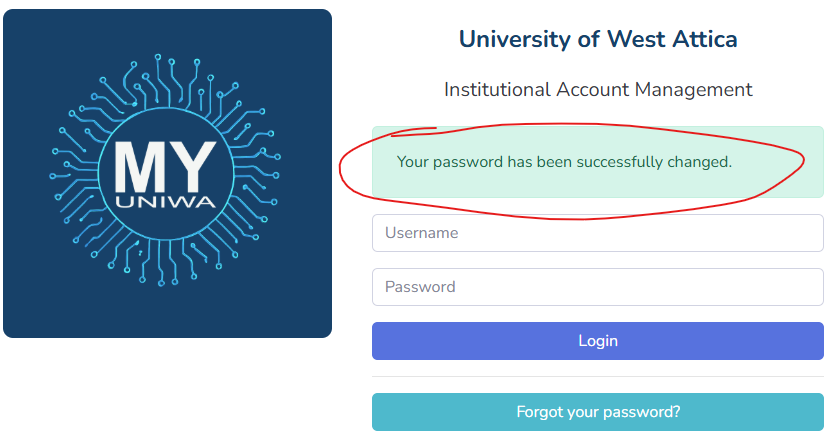
2. Enter your account credentials and click “Login”.
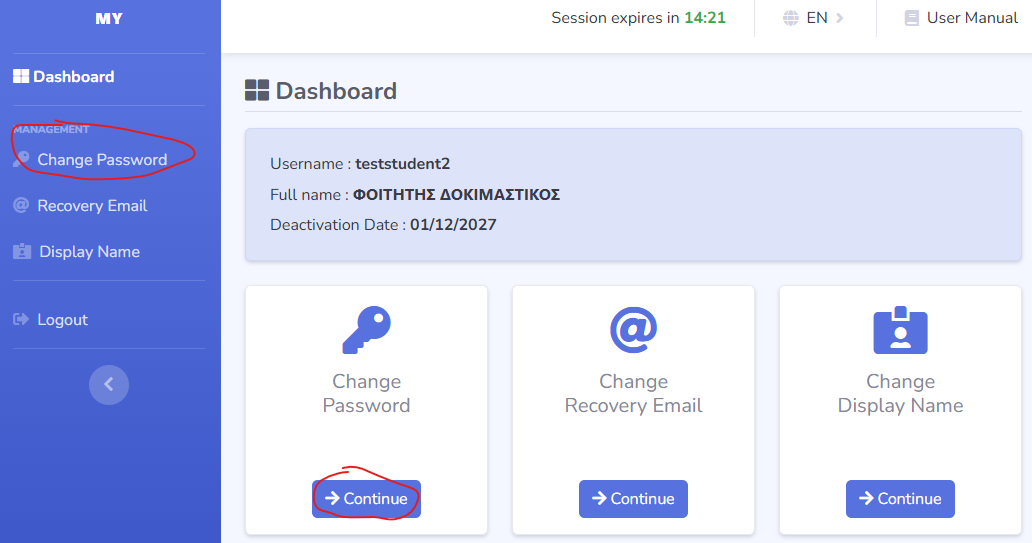
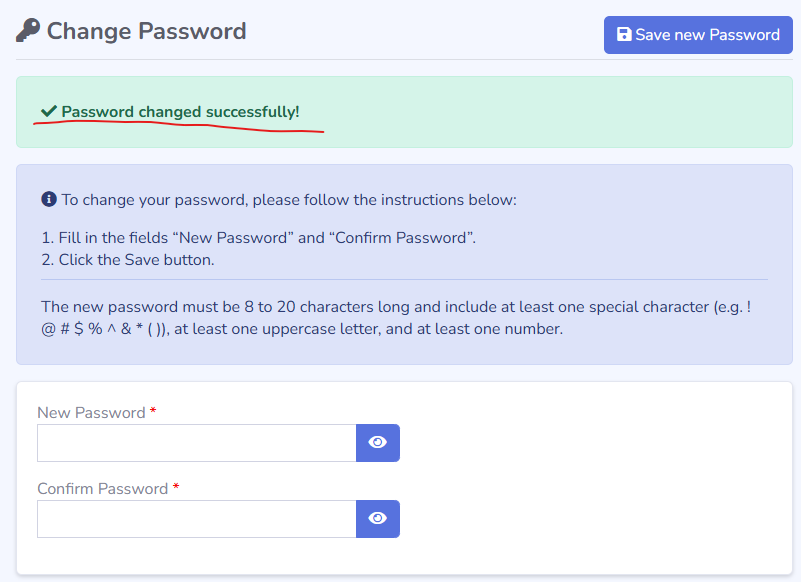
3. Navigate to the “Change Password” tab, either by selecting it from the left-hand menu or by clicking the “Continue” button under the “Change Password” section.
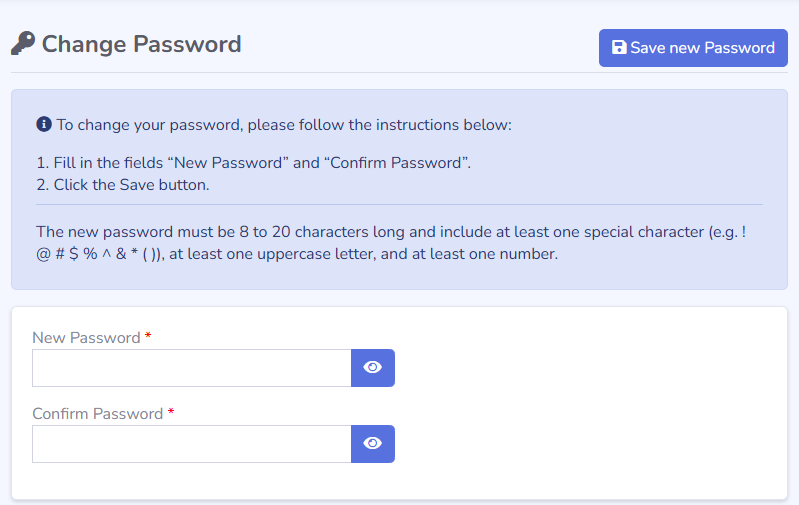
4. To change your password, enter the new password in the “Change Password” tab and click the “Save New Password” button. If the new password complies with the security requirements, the message “Password changed successfully!” will appear at the top of the application.
Setting Recovery Mail Address Instructions
To register a recovery email for your institutional account, follow these steps:
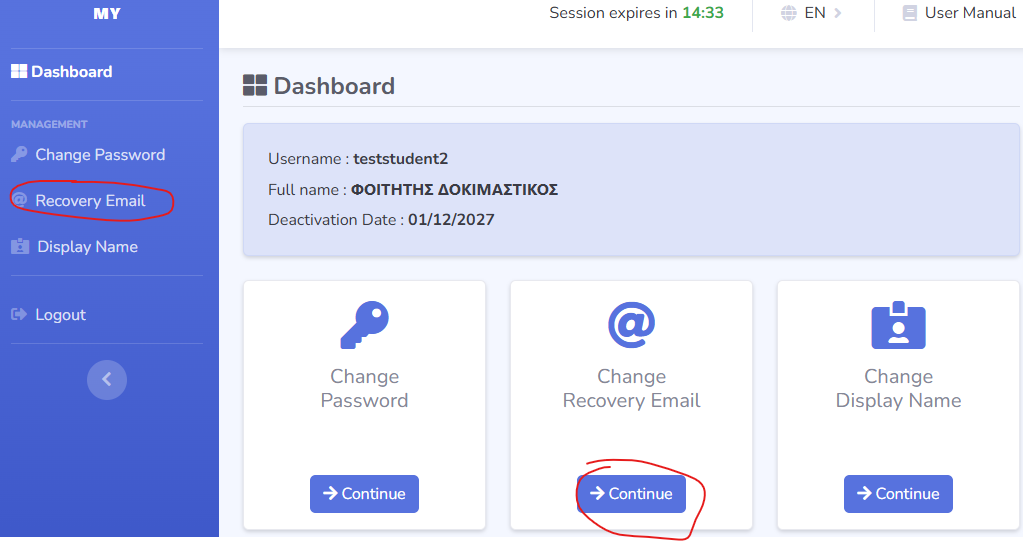
1. Open using a browser the page https://my.uniwa.gr 2. Enter your account credentials and click “Login”. 3. Navigate to the “Recovery Email” tab, either by selecting it from the left-hand menu or by clicking the “Continue” button under the “Change Recovery Email” section.
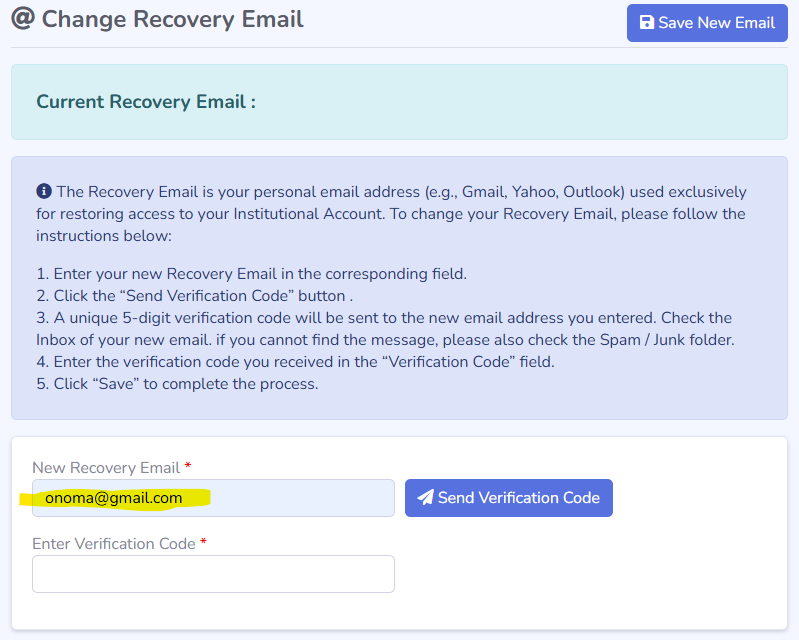
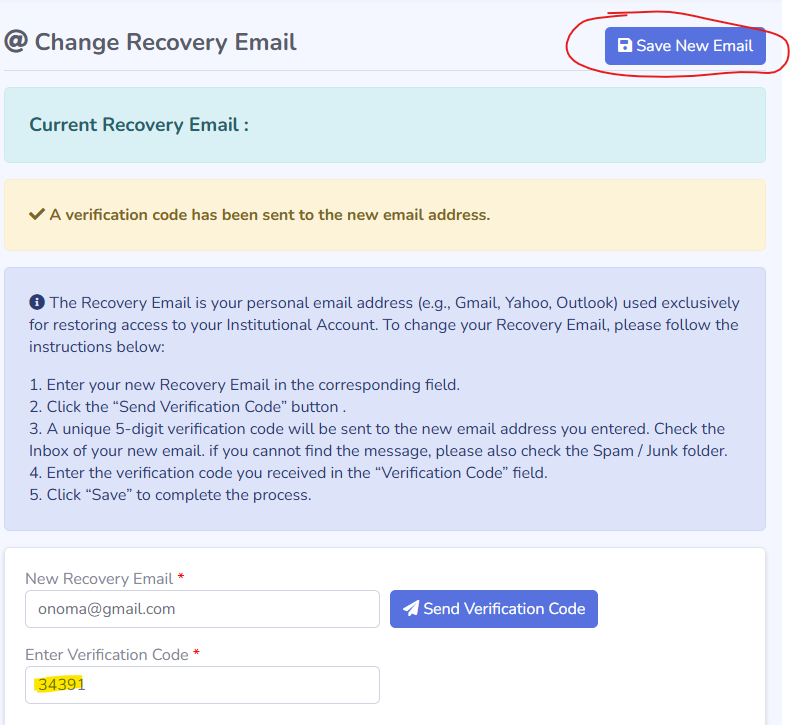
4. Enter a new personal recovery email (e.g., onoma@gmail.com) and click “Send Verification Code”.
5. Next, access your personal email account and open the message sent by the application.
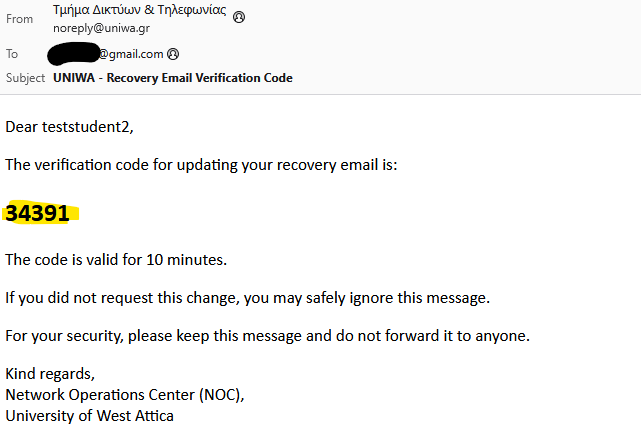
6. Locate the five-digit code in the email and enter it into the “Enter Verification Code” field. Then, click the “Save New Email” button in the top right.
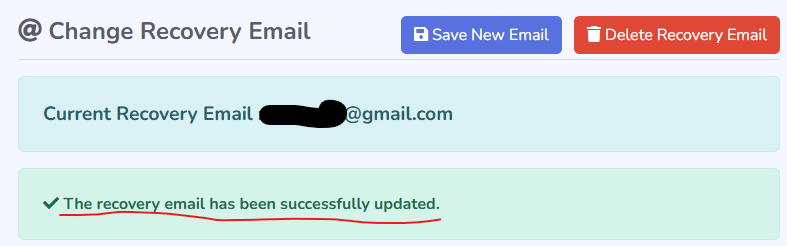
7. Once the five-digit code is entered correctly, the message “The recovery email has been successfully updated” will appear at the top of the application.
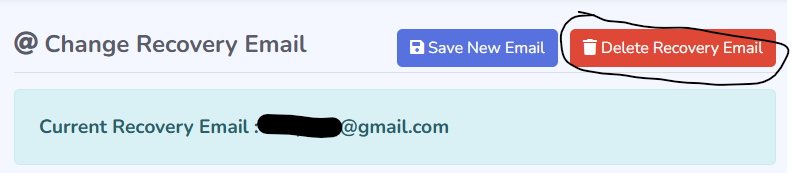
Note: It is possible to delete an existing Recovery Email (without registering a new one) by clicking the “Delete Recovery Email” button at the top right.
Display Name Change Instructions
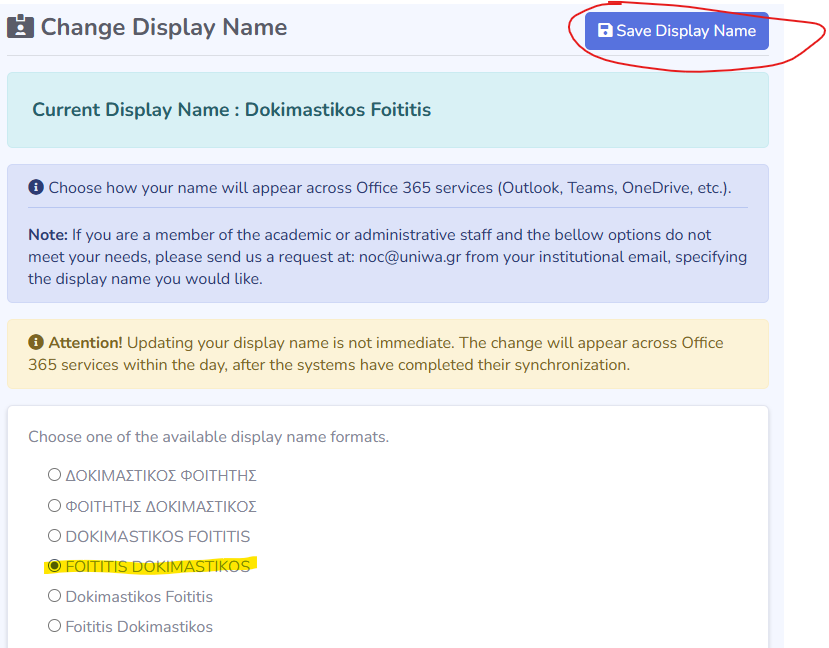
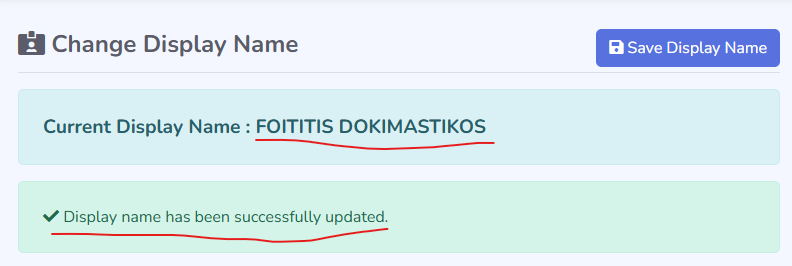
To change your display name in Office 365 services, follow these steps:
1. Open using a browser the page https://my.uniwa.gr 2. Enter your account credentials and click “Login”. 3. Navigate to the “Display Name” tab, either by selecting it from the left-hand menu or by clicking the “Continue” button under the “Change Display Name” section.
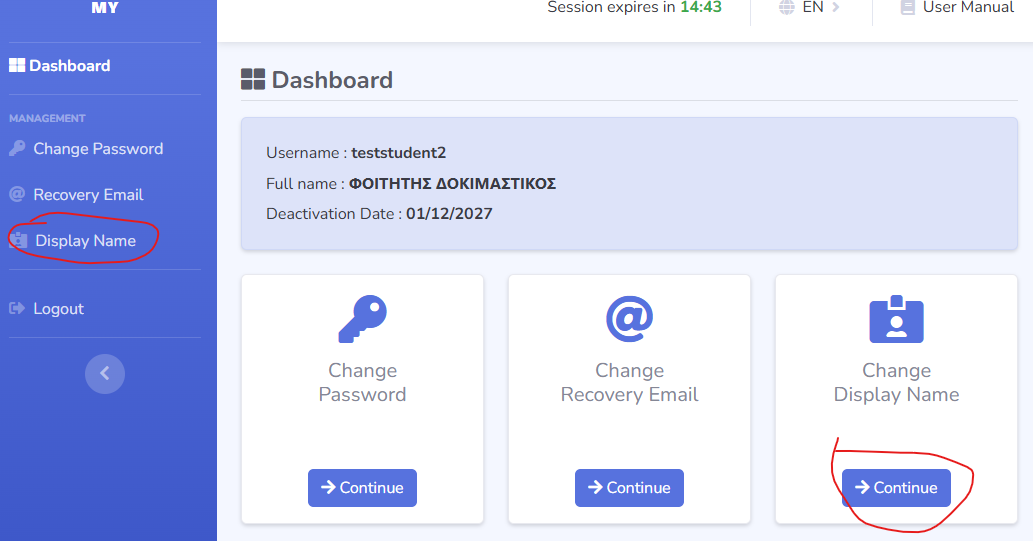
4. Select one of the available options and click the “Save display name” button at the top right.
Password Recovery Instructions
To recover your account password, follow these steps:
1. Open using a browser the page https://my.uniwa.gr
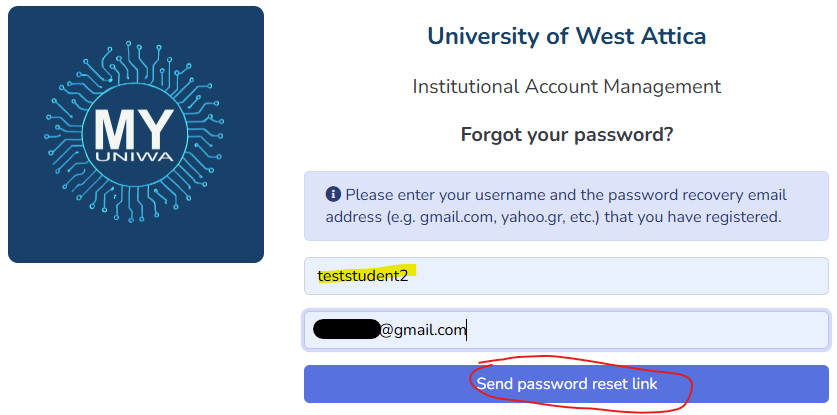
2. Click the “Forgot your password?” button.
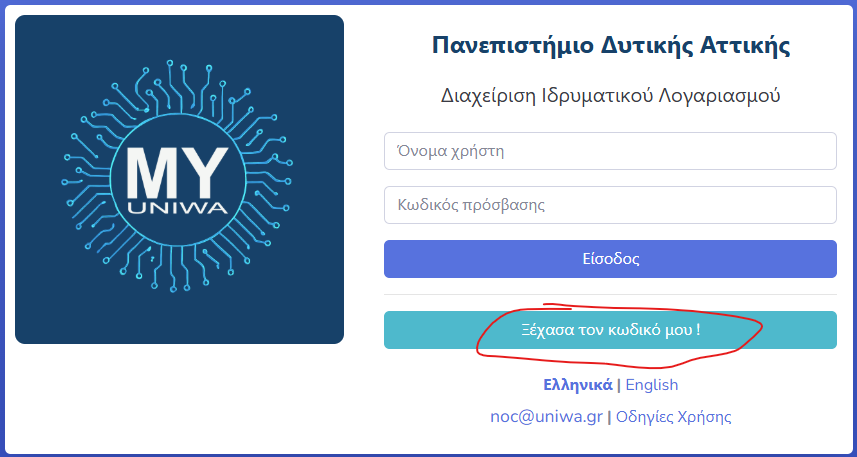
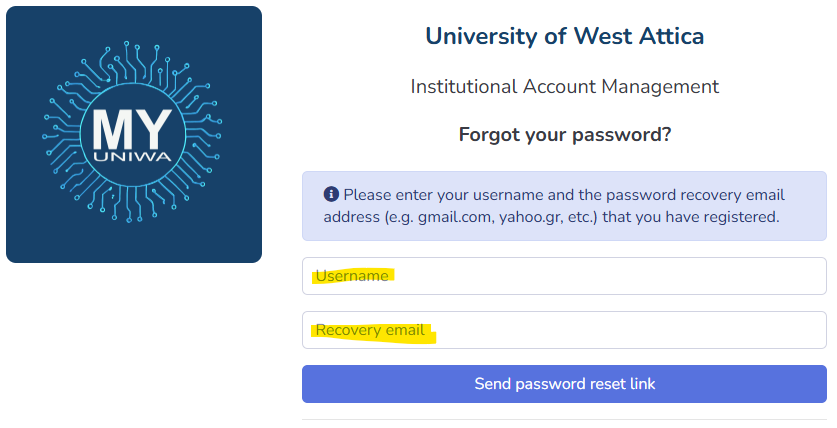
3. On the next page, enter your username (e.g., teststudent2) and your recovery email (if previously registered) and click “Send password reset link”.
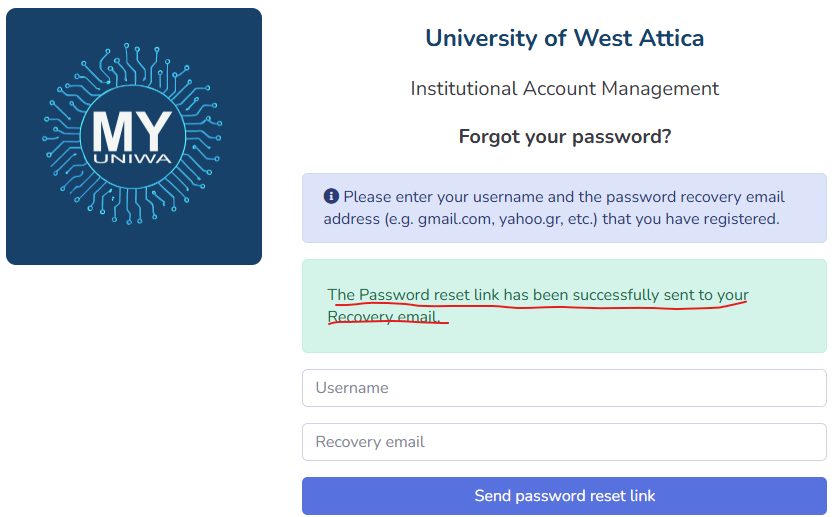
4. Next, access your personal email account and open the message sent by the application. Click the password reset link provided in the email.
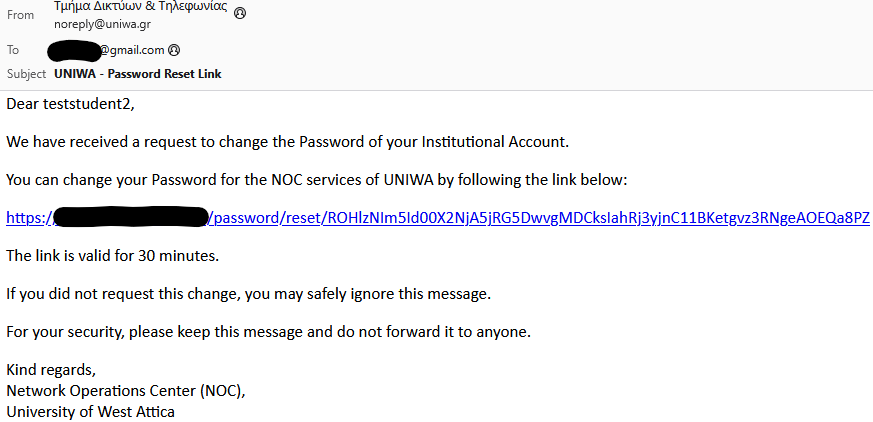
5. After clicking the link, enter a new password for your account. Enter the new password in both required fields and click the “Save New Password” button.
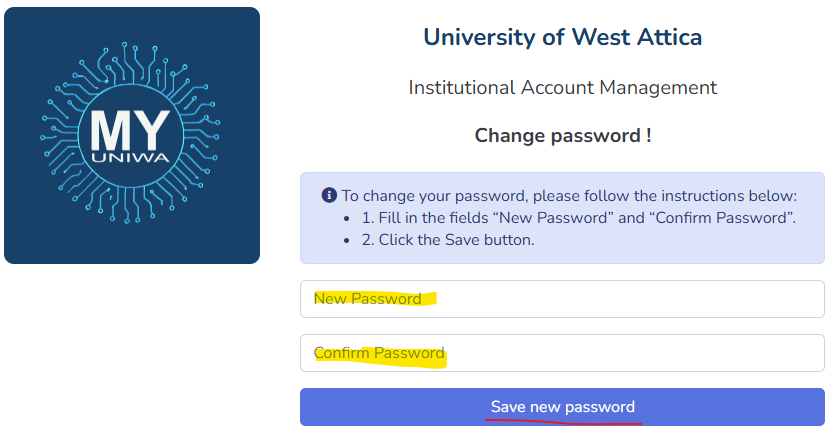
WARNING!!! The password must: a) be between 8 and 20 characters, b) contain at least one uppercase letter, and c) contain at least one special character: !, @, #, $, %, ^, &, *, (, ).
6. Once the process is completed successfully, a confirmation message will appear at the top.